3 Let’s try programming!
Let’s try to understand how R works by playing around with some examples.
As an example, add the below line to your script:
And run it by pressing the Run button at the top of the script, or by using Ctrl + Return on your keyboard (command + Return if you’re on a Mac) as a shortcut.
What happens to your environment panel when you run this line?
You should see that it creates an object in your environment, called x, and it has the value of 1.
If you run:
By itself, and run it, then what happens?
You should see that the console displays the value of x, which is 1. What we have done is create an object, and assign it a value!
Now, if we used an uppercase X, and ran this, what would happen?
You should see that it returns an error in the console, but why?
Programming is always case-sensitive, if the name of the object you’re using does not EXACTLY match the code, then you will get errors being returned - so be very careful, this is where most students trip up.
As another example, let’s try running the below.
If you run the next bit below, what do you think would happen?
The value of banana will be changed by assigning it to the value of 5 - this is an example of overwriting the values by using the same object name, so be careful with what names you use throughout.
If you run:
Would you get an error? Why?
Also, feel free to use # to comment your code - this allows you to understand what you’ve done, makes your code understandable for others, and is really helpful.
[1] 34 Using functions
The last thing to be aware of is functions. These are blocks of code, that are contained to one word functions.
When we go on to run statistical tests, we will utilise functions.
For example, here’s the formula for determining the arithmetic mean:
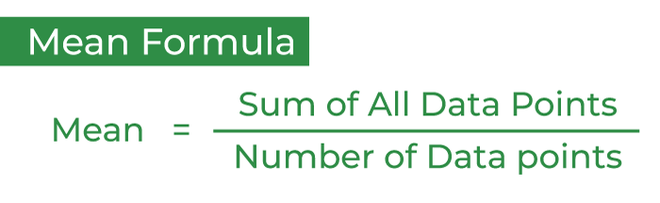
We can use R like a calculator, so if we wanted to determine the mean of the values of 1 to 10, we could run something like:
However, we could also assign multiple numbers to an object, this is called a vector, and we use the concatenate function c to do this:
Run the above line of code in your script and notice the difference between it and the previous x or banana object.
We can use the function mean to determine the mean of our vector:
And you should see the result of this function in the console!
What is the answer?
As an extra note, we could even save this result to a named object, e.g.:
And then the result would also be saved as an object in our environment!
So, remember that when we use a function you use the name of the function followed by curved brackets - we will see a lot of functions in working on R.
5 Using arguments
At this point we can mention adding additional parameters to functions.
These are additional, optional, changes to the function that can change how they are run - which can be really handy in making plots, or changing aspects of statistical tests!
To check what options are available in a function, you can either check the documentation online, or simply run a question mark followed by the function name (but don’t include brackets here).
# Running the below lines will make the documentation for each function appear in the "Help" panel, which is a tab next to the "Plot" panel.
#Try running these one at a time, to see how helpful the "Help" for functions are. You don't need to memorise these, just understand that you can investigate further and add arguments to any function.
?mean
?t.test
?hist
6 Using logical operators
Another thing to be aware of is that we can subset data by logical operators.
For example, try running each line in your script:
[1] TRUE
[1] FALSE
[1] FALSE
We can use this to subset based on this:
vector_numbers = c(1,2,3,4,5,6,7,8,9,10) #A vector containing numbers 1 through 10.

vector_numbers >= 5 #Will return FALSE or TRUE depending on if each number is greater than or equal to 5.

subsetted_vector = vector_numbers[vector_numbers >= 5] #To subset to only data greater than or equal to 5, we put the logical operator into the data using square brackets - we're essentially saying, "grab the values that return TRUE, and leave the rest out".
[1] FALSE FALSE FALSE FALSE TRUE TRUE TRUE TRUE TRUE TRUEWhat is the mean of values 1-10?