2 Opening RStudio and setting directory
2.1 Open RStudio
If on a Mac, use the Finder to locate the RStudio application.
If on Windows, you can use the search bar at the bottom and look for RStudio.
Even though we install R, we do not need to open this!
RStudio works off of R, so we need it installed, but it knows where everything is and uses R in the background.
2.2 Open a new script
At the top of RStudio, press File > New File > R Script.
The R script is what we write code on, which we then run parts of the script or code to take an effect.
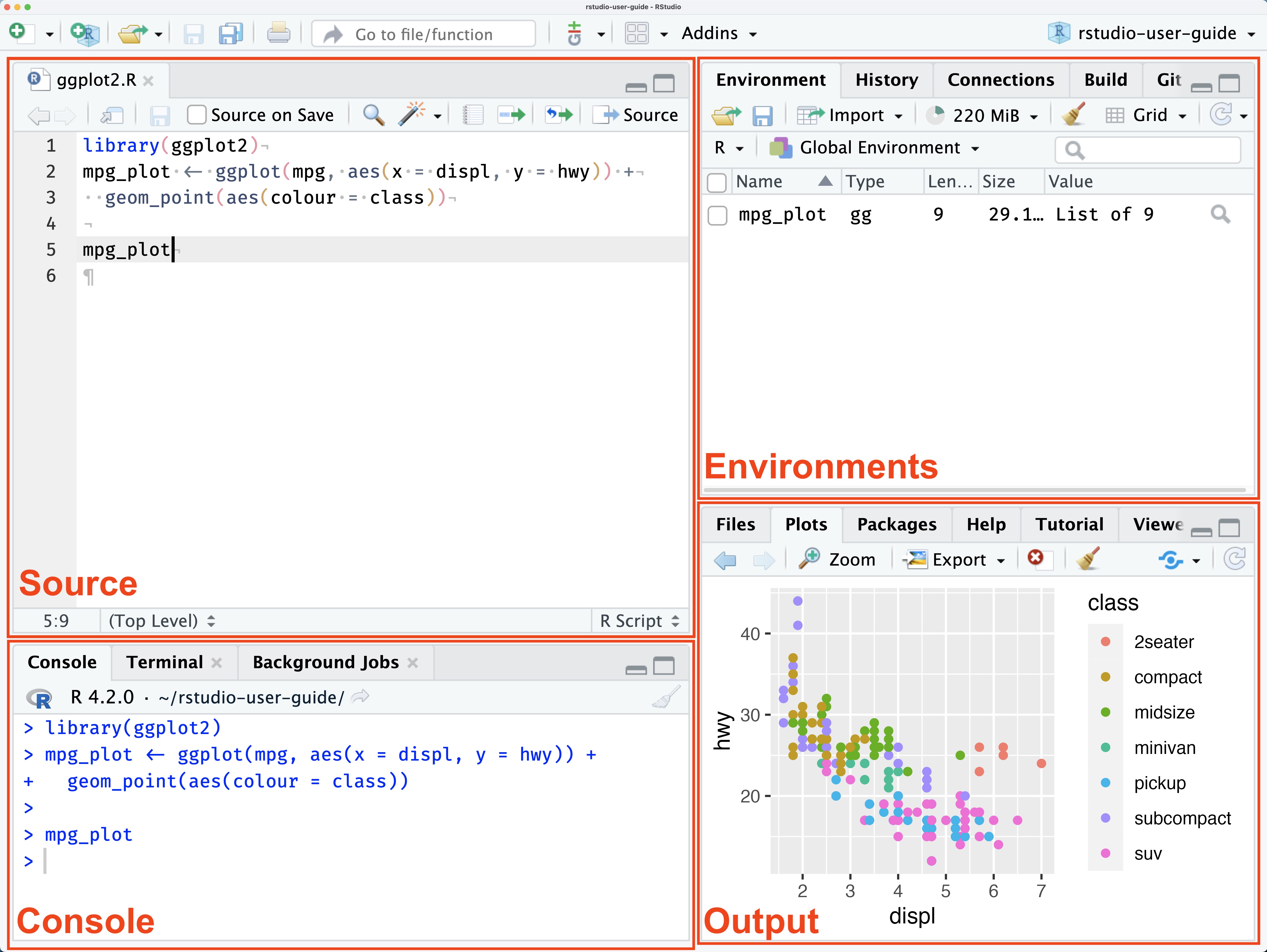
When you have opened the R script, you will notice that there are 4 panels to work from:
Source - top left, this lets you work on a script and save it, necessary for writing code!
Environment - top right, will tell you what data has been loaded in your session.
Console - bottom left, this is the command line on R, whenever we run code from the script we will see it running down here.
Plots, Help, Packages - bottom right, where we will see plots, where we can look for help in RStudio, and see what packages are already loaded.
2.3 Create a folder to store data
Outside of RStudio, create a folder to store the data you’ll work with in this tutorial.
You might want to name it “MMI_Lab_1”.
If you haven’t already, download the UK Demographic dataset on Moodle, and store it in the MMI_Lab_1 folder. This will be the UK_Demographic.csv file.
2.4 Note
.csv formats mean comma separated values.
This means that entries in the data are separated by commas.
If we looked at the data in something like Notepad or Text Edit then we could see:

If we opened this in Excel and saved it, then the format would be altered. So if you do open it in Excel, don’t save it.
Otherwise, we can directly open this format in R!
2.5 Change the working directory
A working directory is the location R is currently working in, so we can load or save data in this directory. You’ll see the current working directory, as below, in the console.

You can change the working directory by clicking on the Session > Set Working Directory > Choose Directory.
Set the working directory to the MMI_Labs_1 folder that you created.
2.6 Save and work from the Rscript
To save the script, hit File > Save As.
Maybe give it a memorable name, like MMI_Lab_1.R.